Guardix Features
Security post order updates: get every officer on the new version
Security post order updates in Guardix: edit the order, officers acknowledge the new version, earlier acknowledgments stay on record and pending ones show.
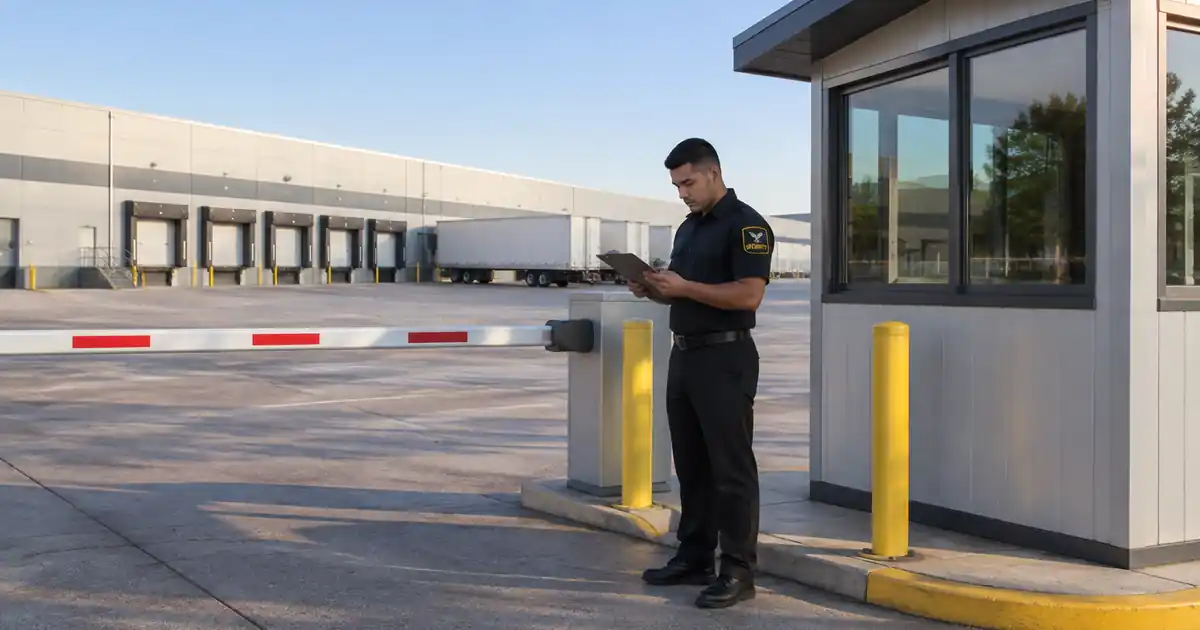
Security post order updates are where good instructions go stale: the client changes a rule, the binder at the desk still shows the old one, and nobody can say which officers know. In Guardix, when a manager edits a post order, officers have to acknowledge the new version, earlier acknowledgments are kept, and the manager sees who has and has not signed off. This post follows one change through post orders, from the edit to what the officer and the client see.
Key points#
- Managers write post orders for each post site, with formatted text and attachments, and assign them to chosen officers or to everyone at the site.
- When a post order is edited, officers have to acknowledge the new version, and earlier acknowledgments are kept.
- Officers read and acknowledge post orders in the mobile app, optionally with a drawn signature, and managers see who has acknowledged and who has not.
- An officer who has not acknowledged a post order can still work the shift, and the post order shows as pending.
- Post orders can be downloaded as a PDF by managers, officers and clients.
The problem: a change nobody can prove was read#
Post orders change for ordinary reasons. The client moves the delivery window, adds a new contact for after-hours calls, or closes a gate during construction. Each change is small, and each one matters the first night an officer follows the old rule.
With paper or a shared file, the manager can send the new version, but cannot easily tell who opened it. Months later, if something goes wrong, the question is not only what the post order said, but which version the officer had agreed to. That is the job this part of Guardix does.
How a post order update works, step by step#
- Open the site's post order. Post orders belong to a post site, so the change starts where the officers of that site will find it.
- Make the edit. Post orders use formatted text and can carry attachments, such as a site map or a contact list.
- Tidy the wording, if you want. An optional AI button tidies up the wording of a post order without adding content. The manager still decides what the order says.
- Check who it is assigned to. A post order goes to chosen officers or to everyone at the site. If the change affects only the night shift, assign it to those officers.
- Save the new version. Officers then have to acknowledge the new version. Their earlier acknowledgments are kept, so the record of who agreed to the old text does not disappear.
- Follow up on pending ones. Managers see who has acknowledged and who has not, and can follow up with the officers who have not.
What the officer sees#
Officers read post orders in the mobile app, the same app they use for their shifts. After an edit, the post order asks them to acknowledge the new version, optionally with a drawn signature.
An officer who has not acknowledged can still work the shift. The post order simply shows as pending. That keeps a post staffed when an officer arrives before reading the change, while making it plain that the acknowledgment is still owed.
Officers can also download the post order as a PDF.
What the manager sees#
For each post order, the manager sees who has acknowledged and who has not. After an update, that list is the to-do list: the officers still pending are the ones to call, text or brief at the start of their next shift.
Because earlier acknowledgments are kept, the manager can also answer the harder question later: which officers acknowledged the earlier version, and which have acknowledged the current one.
What the client sees#
Clients can download post orders as a PDF too. In the client portal, clients see their own sites and post orders, along with reports, the schedule and invoices. What each client sees is controlled by client roles.
When a client asks for a change, the manager can make the edit, let the officers acknowledge it, and point the client to the updated post order in the portal or send the PDF.
Tips for rolling out a change#
- Change one thing at a time when you can, and say in the first line of the post order what changed and from when.
- Assign it to the right people. A change for one post should not ask every officer at the site to sign off.
- Ask for a signature on big changes. The drawn signature is optional, so use it where the change carries the most weight, such as emergency steps.
- Check the pending list before each shift change for the first few days after an update.
- Keep attachments current. If the site map changes, replace the attachment in the same edit, so officers acknowledge the text and the map together.
Frequently asked questions#
What happens in Guardix when a post order is updated?#
When a post order is edited, officers have to acknowledge the new version. Earlier acknowledgments are kept, and the manager sees who has acknowledged the current version and who has not.
Can an officer work a shift before acknowledging an updated post order?#
Yes. An officer who has not acknowledged a post order can still work the shift. The post order shows as pending until the officer acknowledges it.
Can officers sign an updated post order?#
Officers acknowledge post orders in the mobile app, optionally with a drawn signature. Managers see who has acknowledged and who has not.
Can clients see the updated post order?#
Yes. Clients see their own sites and post orders in the client portal, depending on their client role, and post orders can be downloaded as a PDF by managers, officers and clients.
- Post orders
- Features
- Mobile app