Guardix Features
Publish a security guard schedule: the preview and warnings in Guardix
Publish a security guard schedule in Guardix: a preview warns about open, understaffed and time-off shifts, then officers are notified of their shifts.
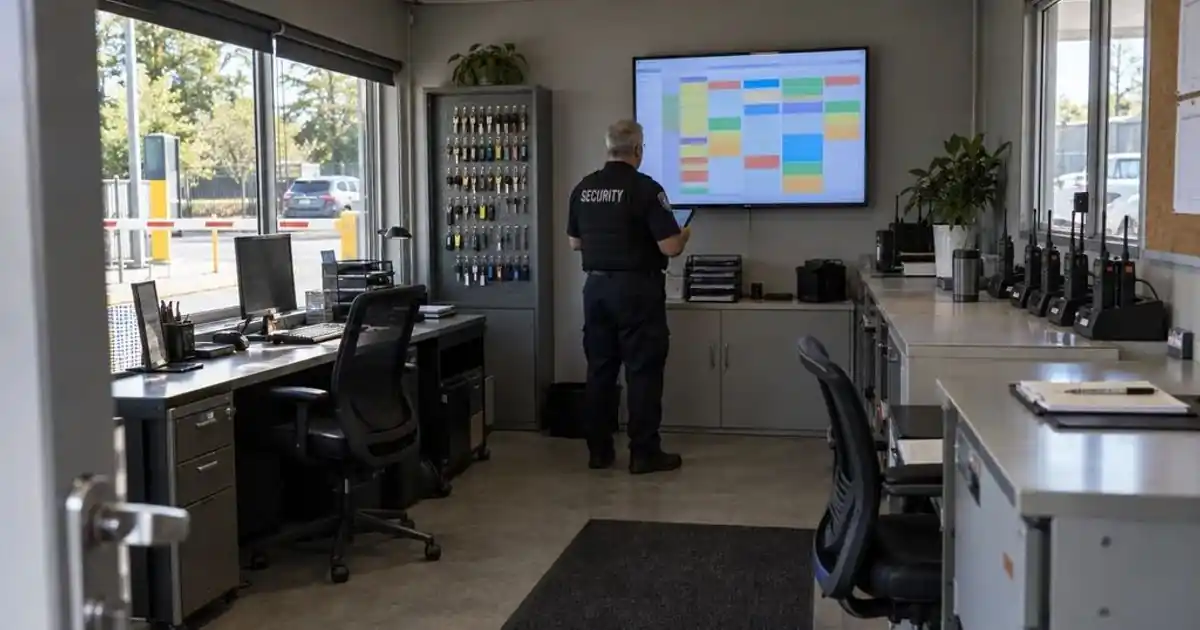
The moment you publish a security guard schedule is the last good chance to catch a gap. In Guardix, managers see a preview before publishing that warns about open shifts, understaffed shifts and shifts on approved time off, and officers are notified when their shifts are published. This post walks through that step in scheduling, from building the shifts to what the officer sees in the mobile app.
Key points#
- Before publishing a schedule, Guardix shows managers a preview that warns about open shifts, understaffed shifts and shifts on approved time off.
- When a manager assigns a shift, Guardix flags clashing shifts and approved time off, and warns when the shift would put the officer over their set weekly hours.
- Officers are notified when their shifts are published, and get reminders before a shift.
- Managers are alerted when an officer is late to clock in, and schedules can be exported as a PDF or a CSV file.
The problem: the gap you find on Friday night#
A schedule can look full on screen and still have holes. A shift was left open after an officer quit. A post that needs two officers has one. Someone was assigned a shift during time off that a manager approved last week.
Each of these is easy to fix on Tuesday and hard to fix late on Friday night, when the post is empty and the client is calling. The publish step is where Guardix puts these problems in front of the manager.
How it works, step by step#
- Build the shifts. Shifts can be one-off or recurring (daily, weekly or on chosen dates), or built from shift templates.
- Assign officers. When a manager assigns a shift, Guardix flags clashing shifts and approved time off, and warns when the shift would put the officer over their set weekly hours.
- Fill the gaps. Auto-assign can fill empty shifts using distance, availability, skills and cost. Managers can also post open shifts for officers to claim in the app, then approve or decline each claim.
- Preview before publishing. The preview warns about open shifts, understaffed shifts and shifts on approved time off, so the manager can fix them or publish knowingly.
- Publish. Officers are notified when their shifts are published.
- Share it. Schedules can be exported as a PDF or a CSV file, for a client, a supervisor or your own records.
What the manager sees#
The preview is a short list of what still needs attention. An open shift has no officer. An understaffed shift has fewer officers than it needs. A shift on approved time off belongs to an officer who has the day off.
Earlier, while assigning, the manager has already seen warnings for clashing shifts and for officers who would go over their set weekly hours. Together, these checks catch double bookings and overtime before the schedule goes out, not after payroll.
After publishing, the work does not stop. Managers are alerted when an officer is late to clock in, so a missed start is handled while there is still time to send someone else.
What the officer sees#
Officers are notified when their shifts are published, and see them in the mobile app. They get reminders before each shift.
If plans change, officers can request time off in the app, which managers approve or reject. They can ask to swap a shift: the other officer accepts first, then a manager approves. And they can claim open shifts, which a manager approves or declines.
At the start of the shift, the officer clocks in on the phone. By default, an officer outside the site's geofence cannot clock in. A company can relax this for the whole company, one site or one officer, and then clock-ins from outside are recorded and flagged.
What the client sees#
In the client portal, clients see the schedule for their own sites, along with time cards, reports and a live map of on-duty officers. What each client sees is controlled by client roles, so a company decides how much of the schedule each client can view.
Tips for a clean publish#
- Publish on a set day. Officers plan their week around it, and fewer last-minute changes follow.
- Clear the preview first. Treat each warning as a question: fill it, fix it, or write down why it stays.
- Watch weekly hours. Set each officer's weekly hours, so the overtime warning means something when you assign shifts.
- Keep time off current. Approve or reject requests before you build the next schedule, so the preview can catch clashes.
- Use templates for steady posts. A post that runs the same hours every week is faster to build, and less likely to be missed, from a shift template.
Frequently asked questions#
Does Guardix warn about gaps before a schedule is published?#
Yes. Before publishing, managers see a preview that warns about open shifts, understaffed shifts and shifts on approved time off. Officers are notified when their shifts are published.
Does Guardix catch double bookings and overtime?#
When a manager assigns a shift, Guardix flags clashing shifts and approved time off, and warns when the shift would put the officer over their set weekly hours.
How do officers find out about their shifts?#
Officers are notified in the mobile app when their shifts are published, and get reminders before each shift. Managers are alerted when an officer is late to clock in.
Can we export the schedule?#
Yes. Schedules can be exported as a PDF or a CSV file.
- Scheduling
- Features
- Operations